
Attachments and panes
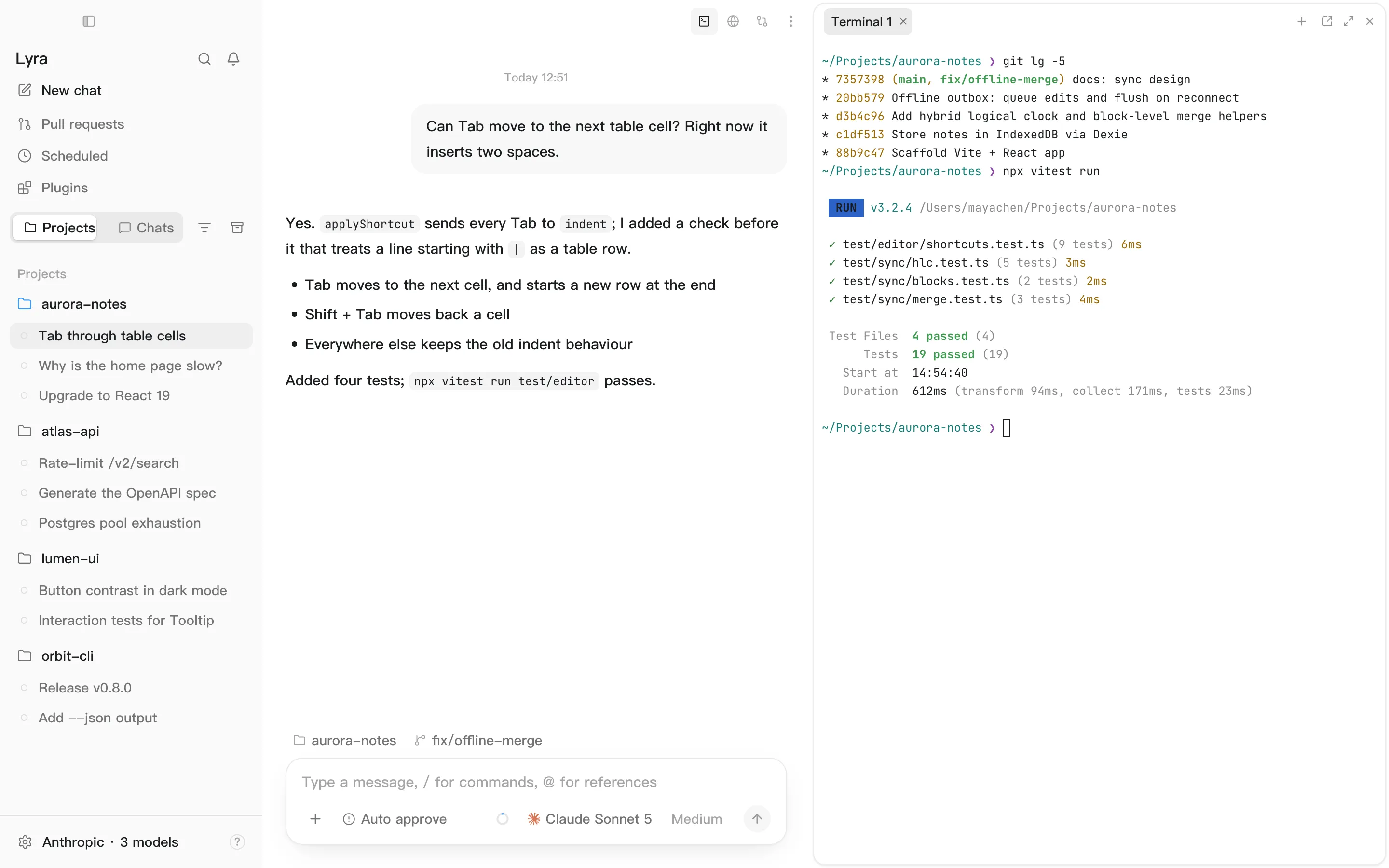
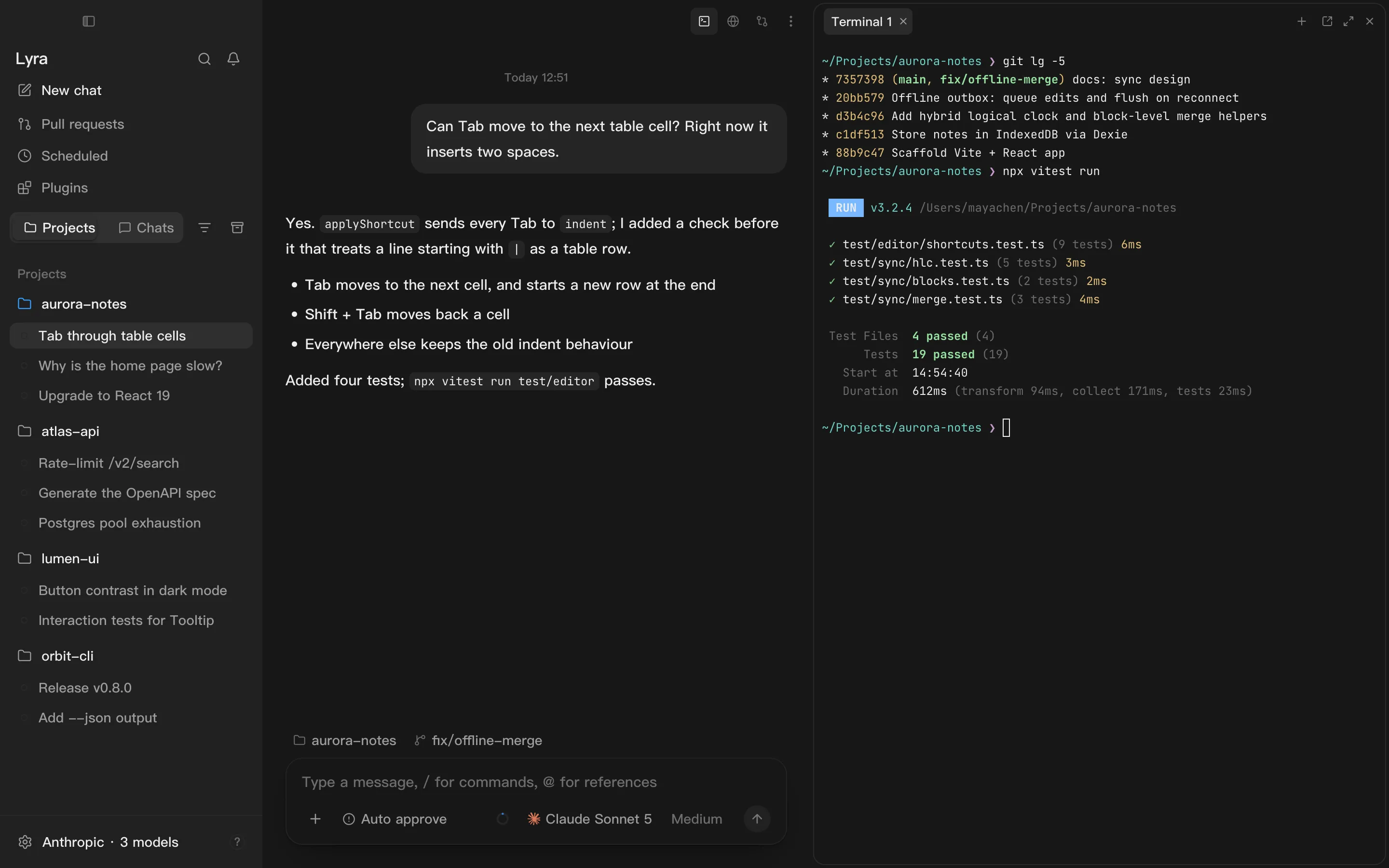
Beside the conversation sits a row of panes you can open at any time — files, terminal, Git, browser and more. Each conversation has its own set.
Attachments
Section titled “Attachments”Drag files into the composer, paste them, or click +. Up to 8 at a time.
| File | What the model gets |
|---|---|
| Images | The image itself (the model must accept images) |
| PDF, Word, Excel, PowerPoint | The extracted text; a scanned document has no text, so only its name |
| Code and text | The full contents |
| Video, audio, archives and so on | Just the name and type |
Screenshots: set a global shortcut under Settings → Screenshots. After a capture you can annotate it — arrows, boxes, text, pen, mosaic — or have it attached to the composer automatically.
Previewing files
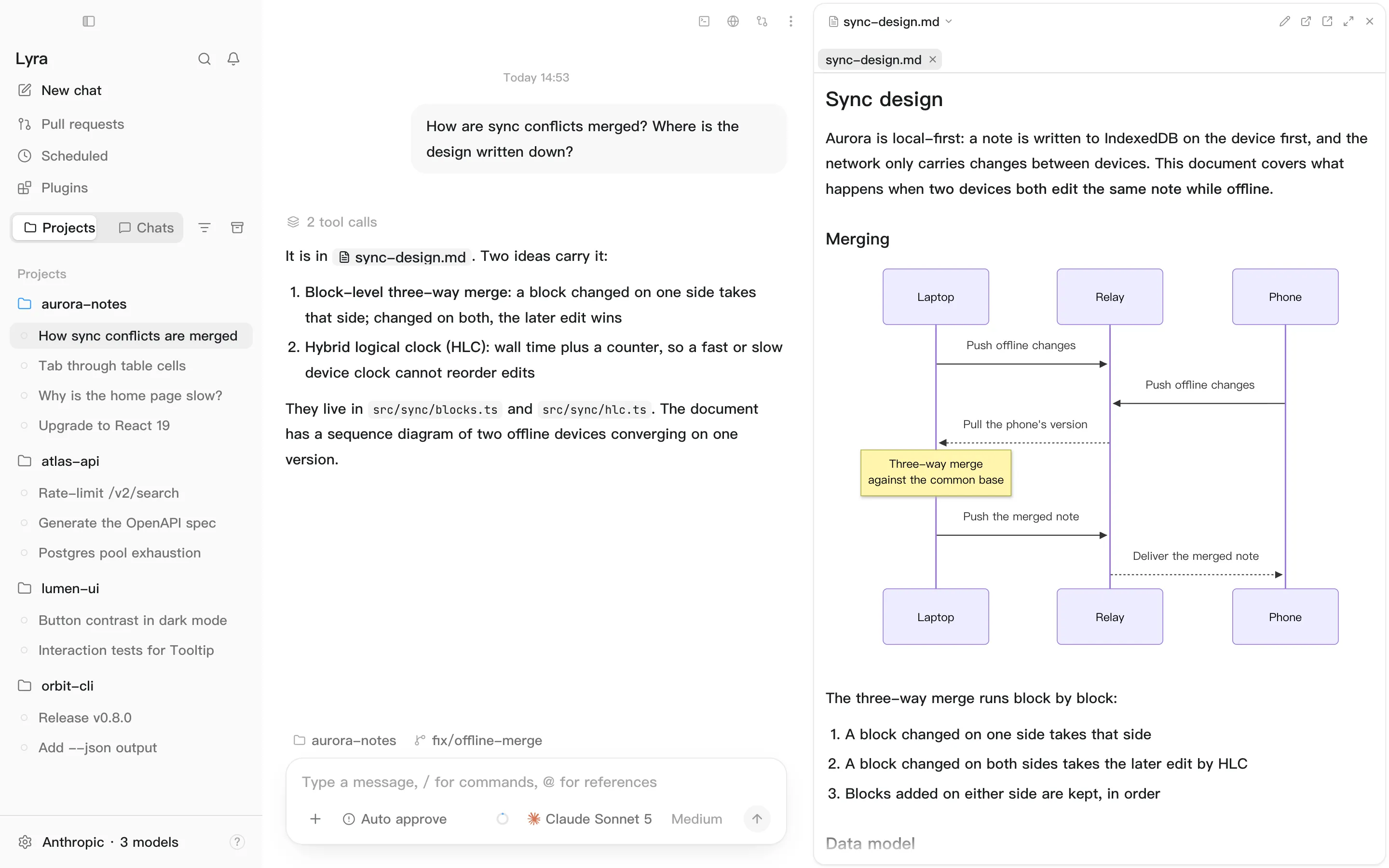
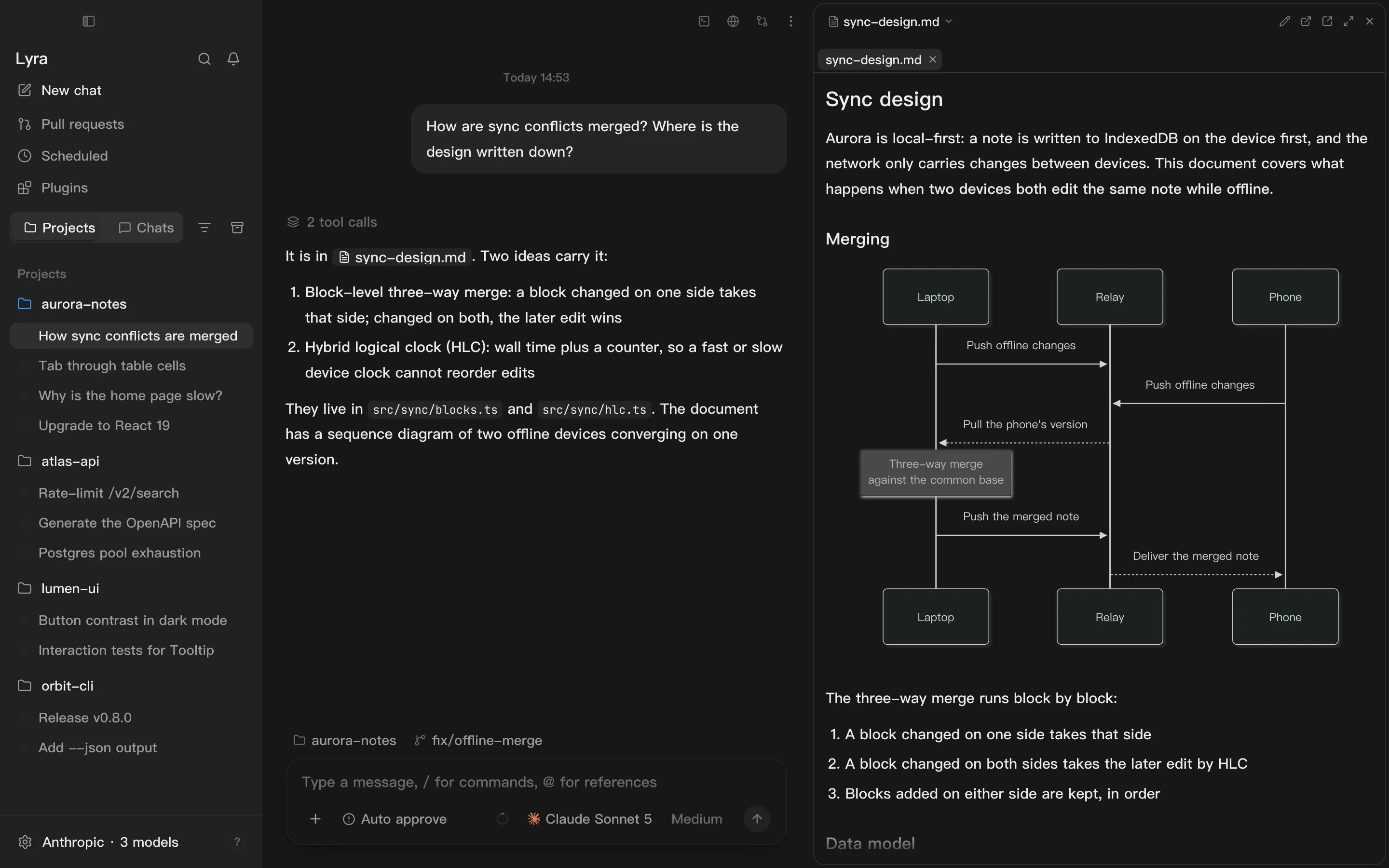
Section titled “Previewing files”Click a file in the Files pane and it opens in File contents:
- Code and text in an editor with syntax highlighting;
⌘Ssaves, and one keystroke formats - Markdown rendered, with a switch back to the source
- Images, video and audio
- PDF and Word (
.docx) - Spreadsheets (
.xlsx,.xls,.ods) and SQLite databases, shown as tables
| Pane | Shortcut | For |
|---|---|---|
| Files | ⌘P |
The project’s file tree |
| File contents | ⌥⌘P |
Viewing and editing the current file |
| Terminal | ⌃` |
A real terminal |
| Git | ⌘⇧R |
Changes, commits, branches, history |
| Side chat | ⌥⌘S |
A separate chat about this conversation that never writes into it |
| Sub-agents | ⌥⌘A |
What each subagent is doing |
| Tasks | ⌘J |
The plan, the run log, and services that are running |
| Trace | ⌘L |
Exactly what this turn sent to the model |
| Browser | ⌘T |
A built-in browser the agent can drive too |
- Move a pane by dragging the small bar at its top centre.
- Maximize a pane to fill the conversation area;
Escrestores it. - Pop out any pane except the browser into its own window.