
Studio
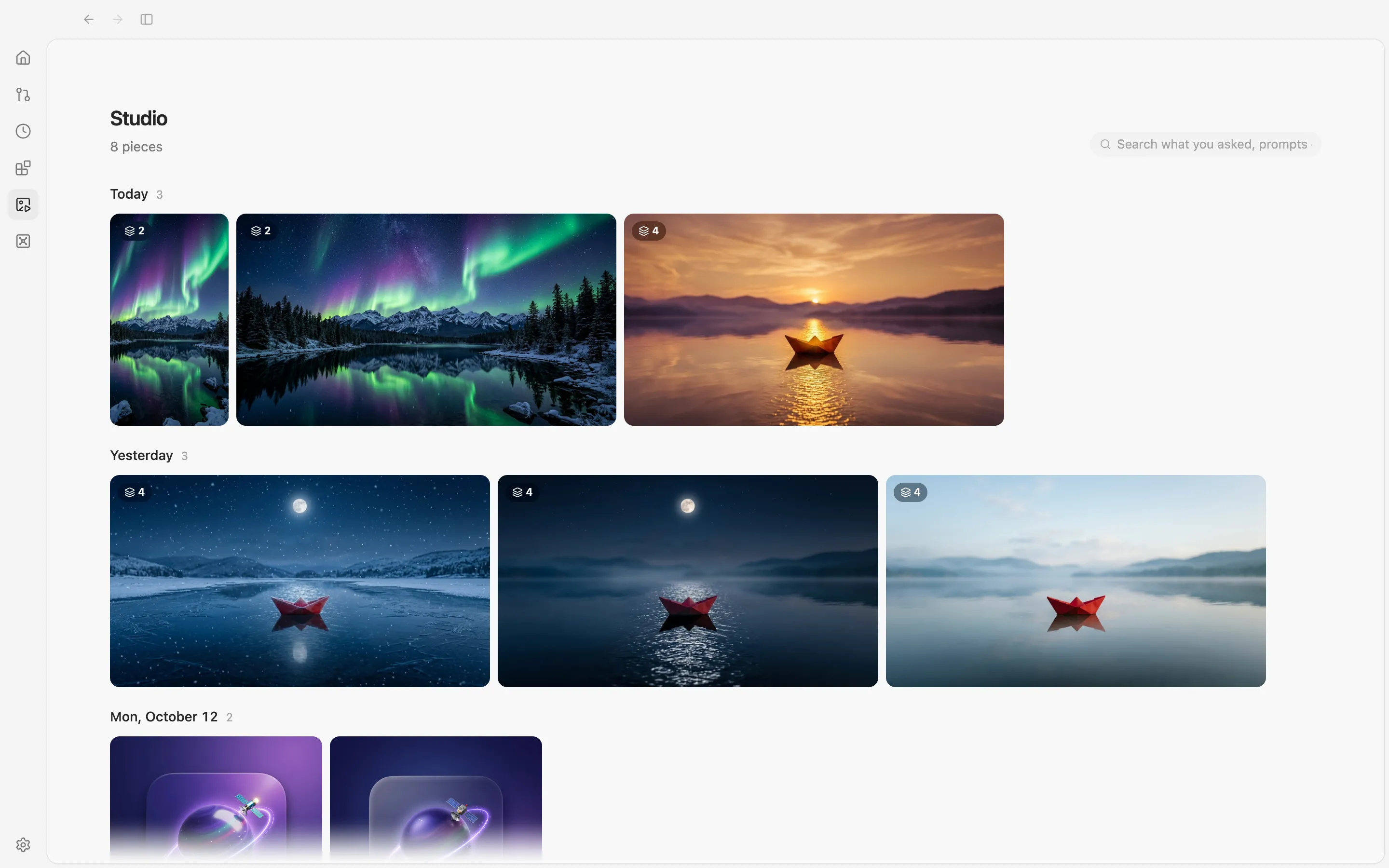
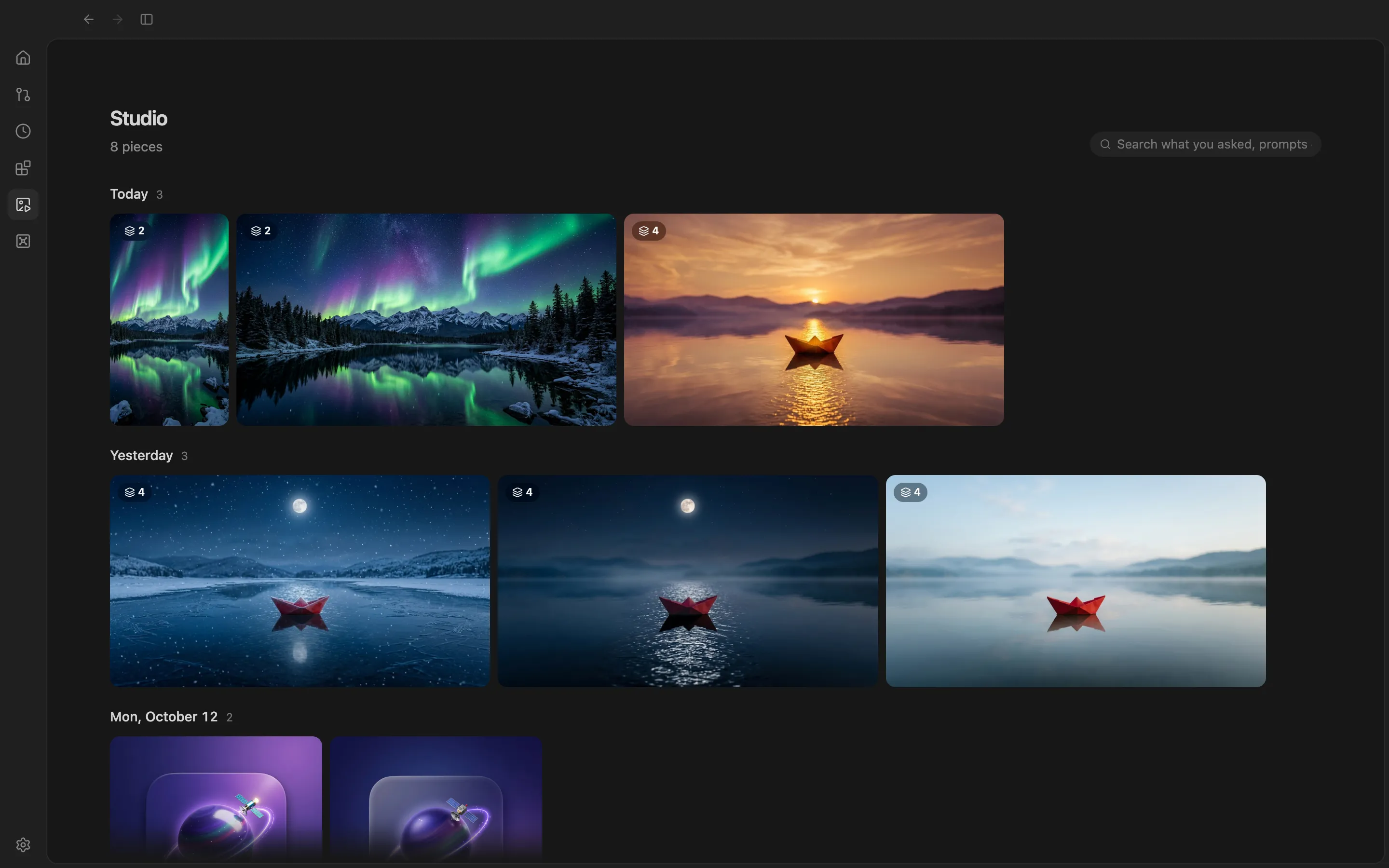
Studio, on the left-hand rail, holds every picture drawn and video made in any conversation. No need to remember which chat it was in; look here.
Browsing and searching
Section titled “Browsing and searching”- Pieces are grouped by day: Today, Yesterday, then dates. Each one keeps its own shape, so a 16:9 picture isn’t cropped to a square.
- Videos have a play mark and their length in the corner. A picture that was made from another, or changed into another, shows how many steps its history has.
- Hover one to see what you said when it was made. The search box beside the heading finds pieces by what you asked, by prompt, or by conversation name.
- The conversation list folds away while you’re in Studio and comes back when you return to a chat. To see it here, press the sidebar toggle; that holds for this visit only.
Opening one
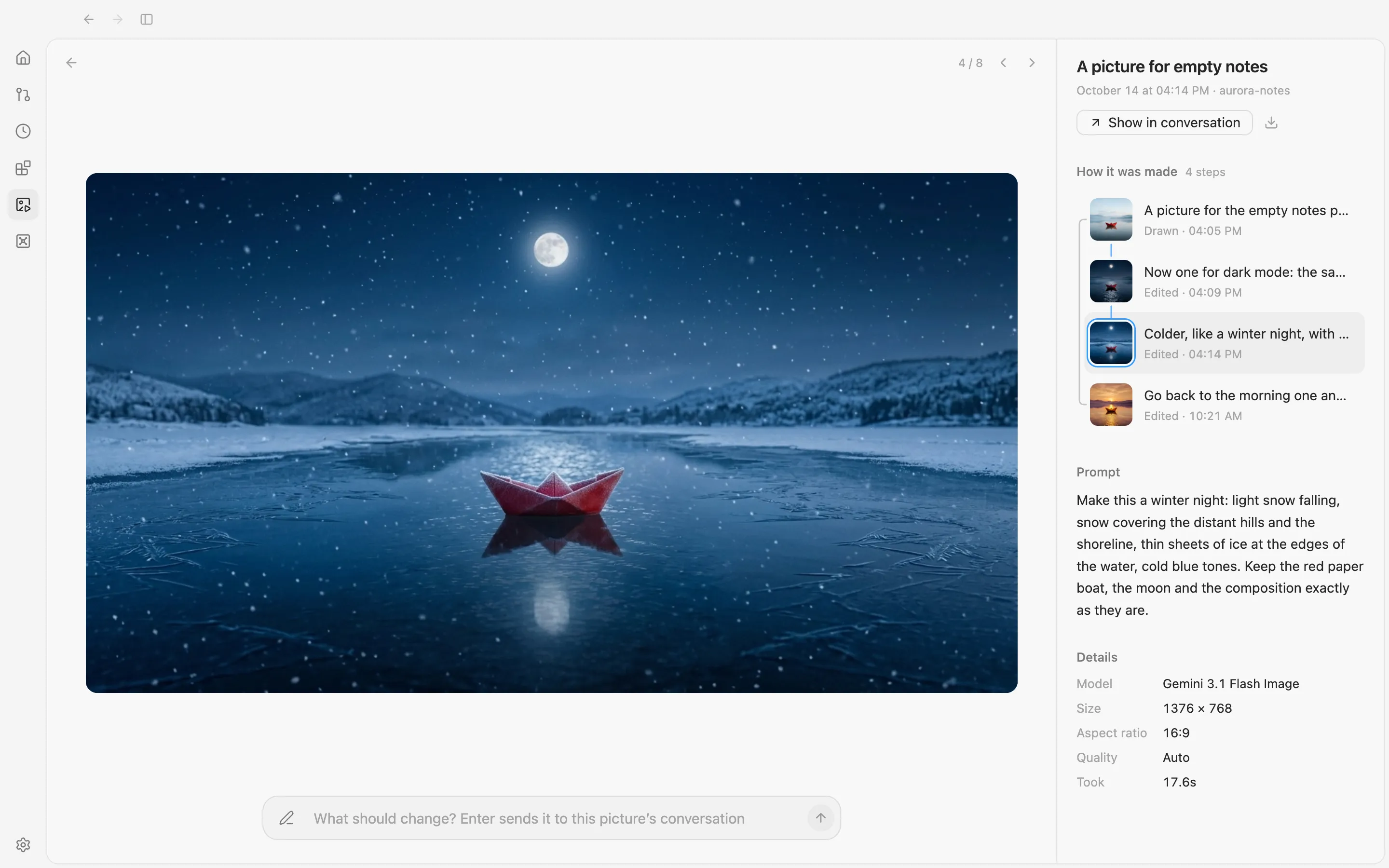
Section titled “Opening one”The piece is shown large on the left; click it for full size. On the right, from the top:
- The conversation’s name, the time and the project. Show in conversation opens that chat, scrolls to the piece, and makes its frame flash. Download is beside it.
- How it was made, described in the next section.
- Prompt: what the image or video model was given, with a copy button. If the provider rewrote it, the rewritten version is underneath.
- Details: model, size, aspect ratio and how long it took; quality for a picture, length for a video.
← and → step to the previous and next piece, and Esc goes back to Studio. Videos play right there.
How it was made
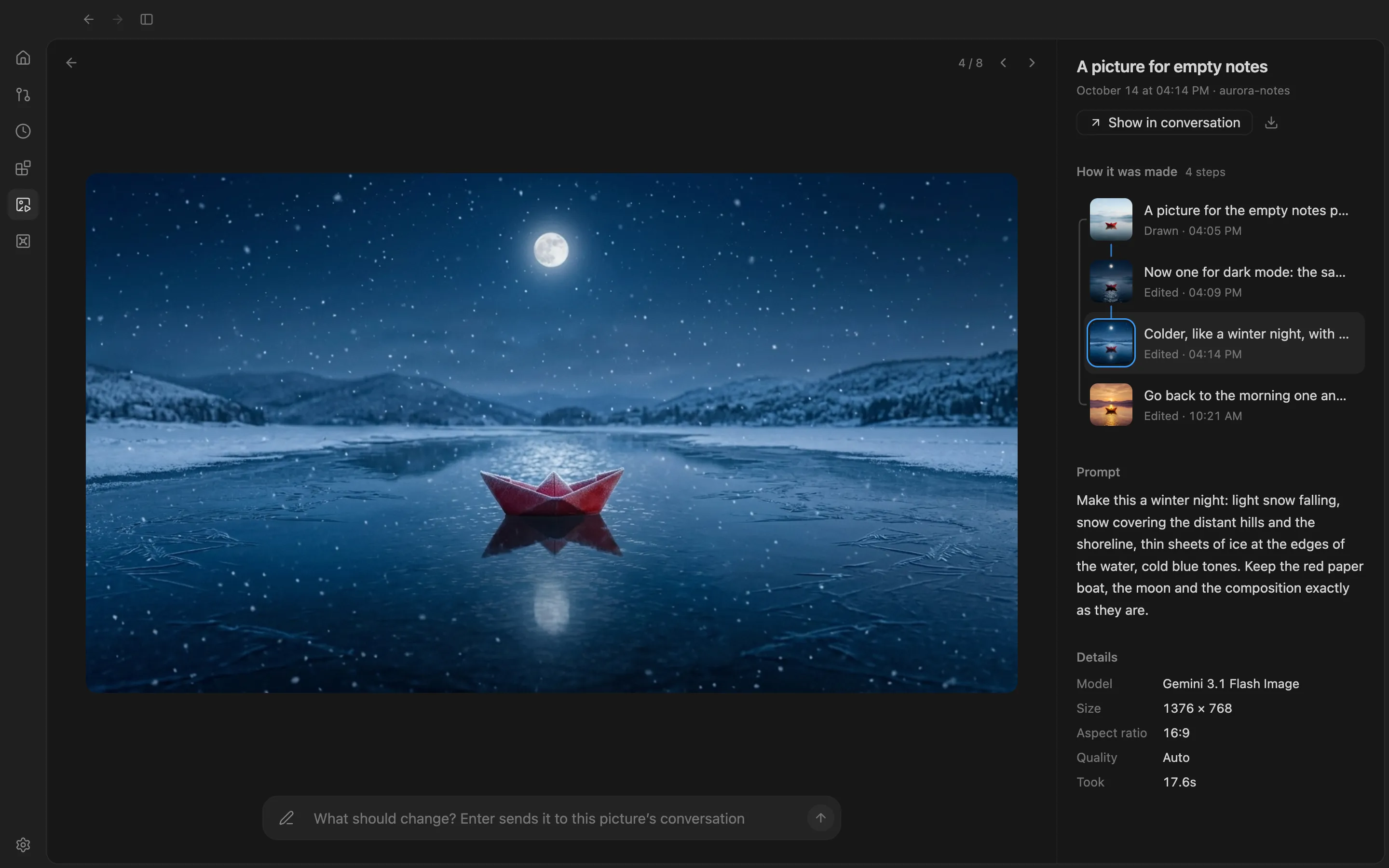
Section titled “How it was made”A picture is rarely made in one go: first a dog, then the dog in a hat, then a girl holding the dog. How it was made lists every step in one column, from the first picture on:
- Each step shows what you said at the time and what kind of step it was: Drawn, Edited, Made into a video, Video made. A picture you put in reads A picture you attached, or Marked up the picture when you annotated it.
- When one picture was changed in two directions, the other branch is listed after it, joined by a line on the left to the picture it branched from. The path to the piece on screen is drawn in the accent colour.
- Click any step to switch to it.
- A picture attached to another conversation and changed there, or changed in a forked conversation, stays on the same history.
Change it again without leaving
Section titled “Change it again without leaving”Under the picture is a box. Write what should change and press Enter: the picture goes back to its conversation with your words, and Lyra switches to that chat to draw. Come back to Studio afterwards and it opens on the new picture.
- Press the pen at the left end of the box (Annotate the picture), circle what should change and press Done; the marked-up copy appears in the box. Then write and send, and the marking shows up as a step of its own. Send the marks without words, and the conversation opens with the marked-up copy in its composer, waiting for you to say what to change.
- If that conversation is busy, Enter still sends; the message queues behind the current turn.
- Videos don’t have this box.