
Plugins and the market
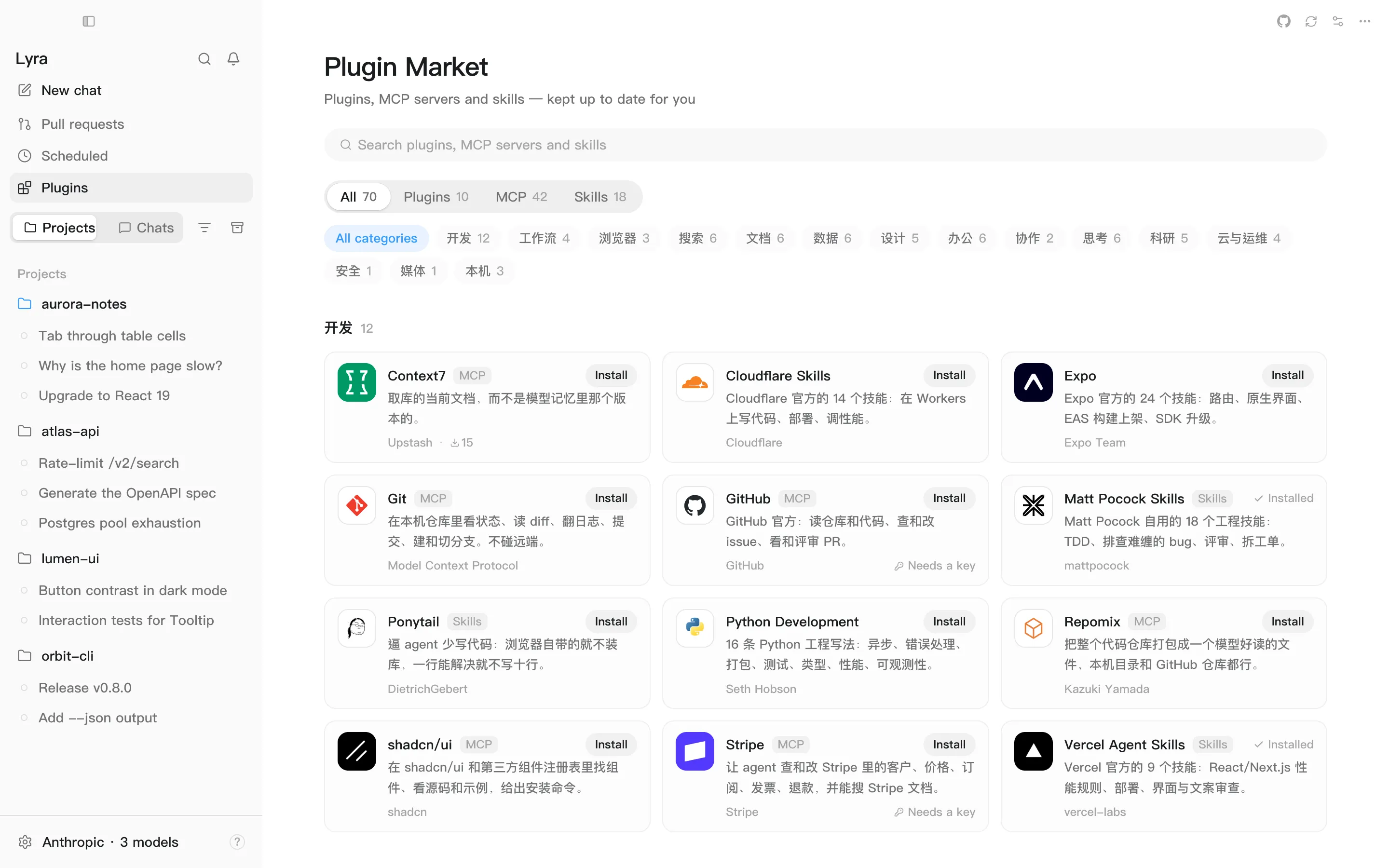
Plugins in the sidebar opens the Plugin Market, where you install plugins, MCP servers and skills. Whatever you’ve installed is managed under Settings → Plugins.
Three kinds of thing
Section titled “Three kinds of thing”| Kind | What it is | After installing |
|---|---|---|
| Plugin | A bundle of skills | Available in new chats right away |
| MCP server | An external program that gives the agent tools | Off until you switch it on |
| Skill collection | A set of SKILL.md files |
Installed as one bundle you can switch on and off, like a plugin Next release |
Installing
Section titled “Installing”-
Open Plugins in the sidebar and search. You can also browse by category Next release
-
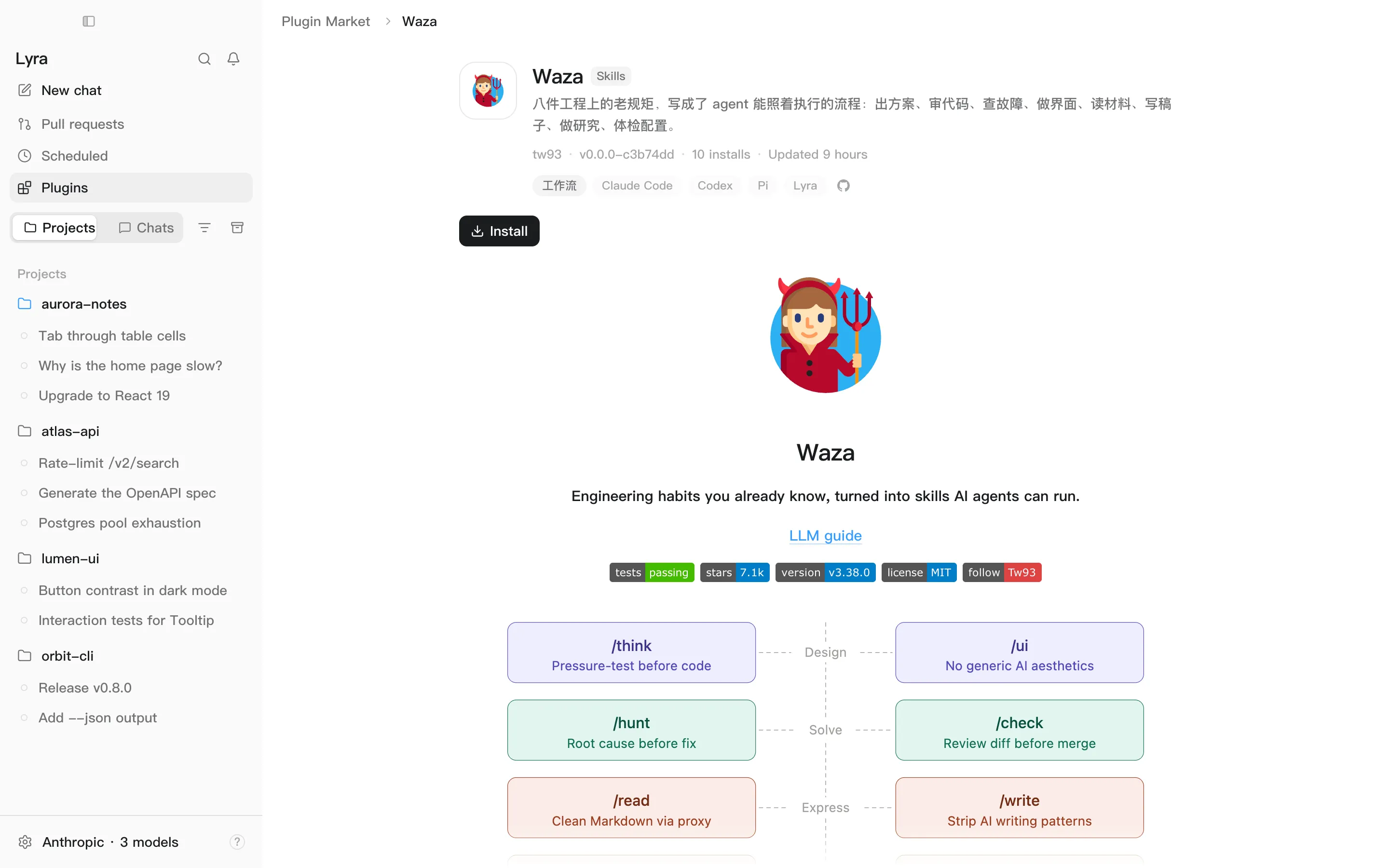
Open a card for the details: what it does, and which skills or servers it brings.
-
Click Install. MCP servers arrive switched off; turn them on under Settings → Plugins → MCP.
-
If an MCP server needs a key, fill it in on the detail page or under Settings → Plugins → MCP before switching it on Next release
Managing and updating
Section titled “Managing and updating”- Settings → Plugins has five tabs — Plugins, MCP, Skills, Rules and Extensions — where you switch things on and off and uninstall them. A button at the top right of the market takes you straight there.
- Auto-update Next release: installed items keep up with new versions by default, checked about every 30 minutes. Turn off Auto-update in the market’s
⋯menu to be told about updates instead; the sidebar then shows how many are waiting. - Keys Next release: keys you enter for MCP servers are encrypted on this machine. They never go into
settings.jsonand are never synced to your phone.
Sources
Section titled “Sources”The default source is the official Lyra Plugin Market. To add another marketplace, enter its address under Sources… in the market’s ⋯ menu; it must start with https:// Next release
To list something of your own, see Publish to the market.