
Quick start
Lyra doesn’t ship with a model, so the first thing to do is add one. Until you do, messages can’t be sent.
-
Add a model provider
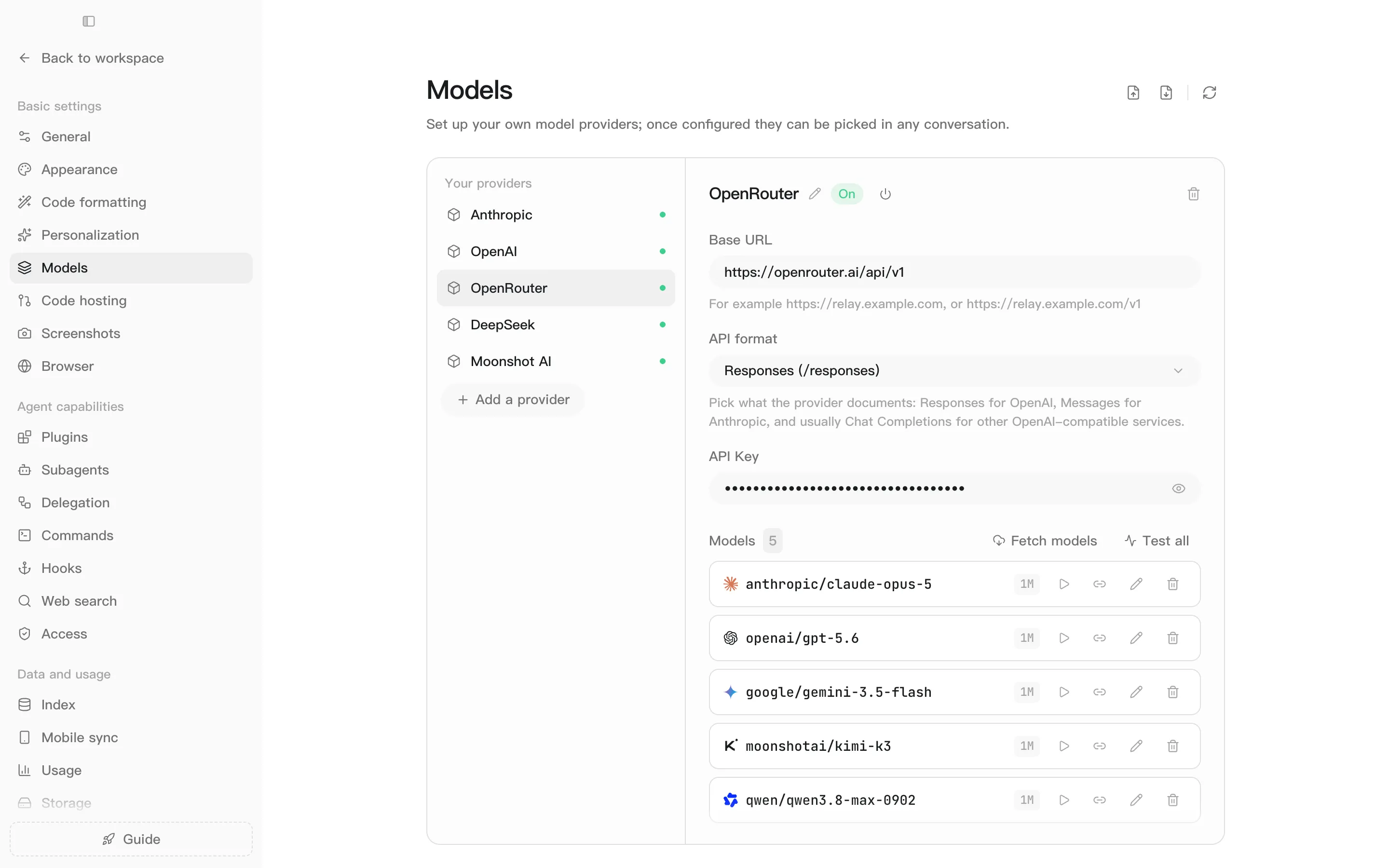
Open settings with the gear at the bottom left of the sidebar, go to Models → Add a provider, and fill in three fields:
Field What goes there Base URL The provider’s (or relay’s) API address API format Responses, Anthropic Messages or Chat Completions API Key The key your provider gave you Pick the format your provider documents: Responses for OpenAI, Messages for Anthropic, and usually Chat Completions for other OpenAI-compatible services.
Then click Fetch models to read the model list from the endpoint and import the ones you want, or Add a model to enter a model ID by hand. Once a test passes, pick your usual model and choose Make this the default.
-
Start your first chat
Click New chat at the top of the sidebar and describe what you want done.
Entersends;Shift+Enteradds a new line. -
Open a project
Click the
+next to Projects in the sidebar, or the project button just above the composer → New project. Give it a name and add the folder your code lives in. Conversations in that project run in its main folder.Prefer not to tie a chat to a project? Choose Work without a project.
-
Choose how much to approve
Switch modes from the bottom left of the composer:
- Ask for approval: asks before every file write, command and network call
- Auto approve (default): read-only commands run on their own; everything else still asks
- Full access: everything runs without asking
Everyday moves
Section titled “Everyday moves”| To | Do this |
|---|---|
| Run a command or skill | Type / |
| Reference a file, folder, skill, agent or past chat | Type @ |
| Bring back something you sent earlier | Press ↑ in an empty composer |
| Compact the context | Type /compact |
| Start a new chat | Type /clear |
| Show or hide the sidebar | ⌘B |
Pane shortcuts
Section titled “Pane shortcuts”| Pane | Shortcut |
|---|---|
| Files | ⌘P |
| File contents | ⌥⌘P |
| Terminal | ⌃` |
| Git | ⌘⇧R |
| Side chat | ⌥⌘S |
| Sub-agents | ⌥⌘A |
| Tasks | ⌘J |
| Trace | ⌘L |
| Browser | ⌘T |